
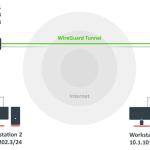
WireGuard is one of the fastest and most secure VPN protocols supported by MikroTik RouterOS. Despite its simplicity, many users face issues where the WireGuard tunnel does not connect, peers do not establish a handshake, or traffic does not pass through the VPN.
This article explains the most common reasons why WireGuard VPN does not work on MikroTik routers and provides a clear, step-by-step troubleshooting approach.
The WireGuard interface is created and enabled, peers are configured, and client settings appear correct. However, the VPN connection does not establish properly, or it connects without passing any traffic.
This problem usually occurs due to firewall rules, NAT configuration, routing issues, or incorrect peer settings.
No WireGuard handshake is established
VPN connects but no internet access is available
VPN connects but LAN resources are unreachable
RX and TX counters remain at zero
Client shows connected status but cannot reach any destination
Make sure the WireGuard interface is enabled
Verify that public and private keys are correct
Confirm the correct UDP port is configured
Ensure system date and time are correct
These basic checks resolve many WireGuard issues.
WireGuard uses UDP. If the listening port is blocked by the firewall, the tunnel will never establish.
VPN clients may connect successfully but fail to access the internet or other networks if NAT rules are missing.
Allowed IPs define which traffic is routed through the tunnel. Incorrect values will prevent traffic from passing.
WireGuard does not automatically manage routing for all scenarios. Required routes must exist on the router.
Dynamic public IPs, incorrect endpoint addresses, or wrong ports can silently prevent the tunnel from connecting.
Ensure the WireGuard UDP port is allowed on the input chain.
Replace the port number if a different port is used.
Check that the interface is enabled and listening on the correct port.
Verify peer settings carefully.
Confirm that:
Public keys are correct
Allowed IPs are properly defined
Endpoint address is reachable
If VPN clients need internet access, configure NAT.
Adjust the subnet according to your setup.
Ensure routes exist for VPN and LAN subnets.
After applying changes:
Ping the VPN gateway
Ping LAN IP addresses from the VPN client
Monitor RX and TX counters on the WireGuard interface
If counters increase, traffic is flowing correctly.
A working WireGuard setup should show:
Active handshake between peers
Increasing RX and TX counters
Successful ping and browsing tests
Firewall counters showing allowed traffic
Use interface lists for LAN and WAN
Comment all WireGuard-related rules
Use static public IP addresses when possible
Keep Allowed IPs as specific as possible
Forgetting to allow the UDP port in the firewall
Misconfigured Allowed IPs
Missing NAT rules
Testing connectivity only from inside the local network
When WireGuard VPN does not connect on MikroTik routers, the issue is almost always related to firewall rules, NAT configuration, or routing logic. WireGuard itself is simple, but it relies heavily on correct network fundamentals. Following a structured troubleshooting approach helps resolve issues quickly and avoids unnecessary configuration changes.
 Ahmed Ezz
Dec 25, 2025
 WiFi Eg
Dec 23, 2025
 WiFi Eg
Dec 23, 2025
 Ahmed Ezz
Dec 25, 2025
 WiFi Eg
Dec 22, 2025

By clicking the button, you are agreeing with our Term & Conditions